How Can I Block Websites on Safari?
The internet provides us with endless possibilities to get any information, entertain, and connect socially. Yet there are occasions when you need to restrict access to a particular website. Perhaps it is distracting you, dangerous for your child, or maybe something else that you prefer to stay away from. In case you are working with Safari on an iPhone, iPad, or Mac, then it is a good thing that Apple offers you several options for controlling access to browsing. If you wish to keep your children away from dangerous websites or just focus more and work effectively, then learning how to block a website in Safari will help you tremendously.
One of the best and easiest built-in tools offered by Apple is its Screen Time web content control.

Table of Contents
Why Block Websites on Safari?
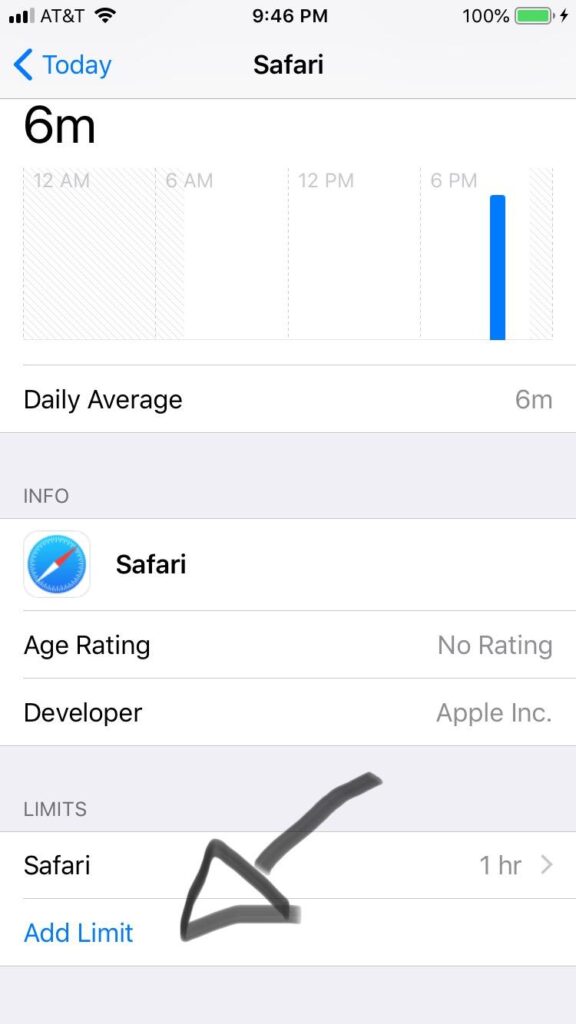
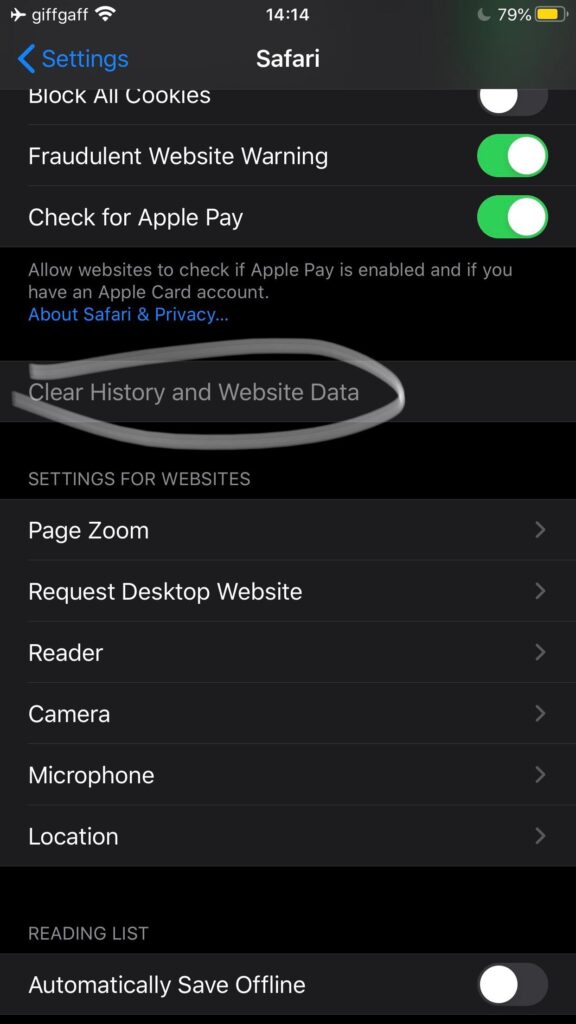
People block websites for many different reasons. Parents often want to protect children from harmful online content. Students may need fewer distractions during study time. Professionals may want to stay away from social media during work hours. Some users simply want to reduce unhealthy screen habits.
Blocking websites can help in several ways:
- Better Productivity
Removing access to distracting pages helps users stay focused on important work.
- Child Safety
Content restrictions keep children away from adult or dangerous websites.
- Reduced Screen Addiction
Limiting access to entertainment websites can improve daily digital habits.
- Improved Online Security
Suspicious websites may contain spam, scams, or malware that can harm devices.
A properly planned website block can support both safety and discipline.
Use Screen Time on iPhone and iPad
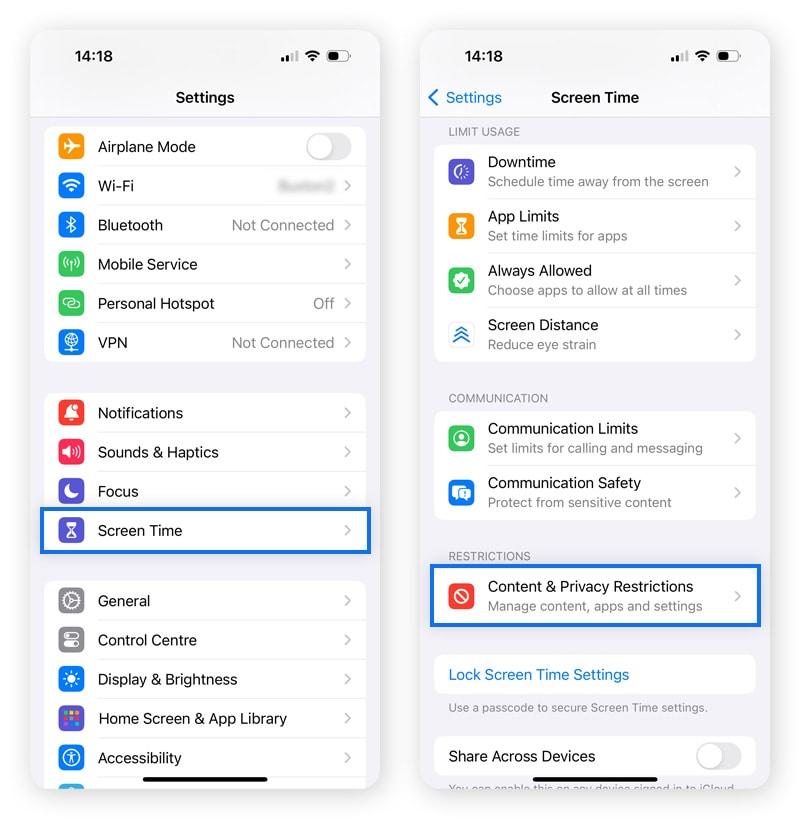
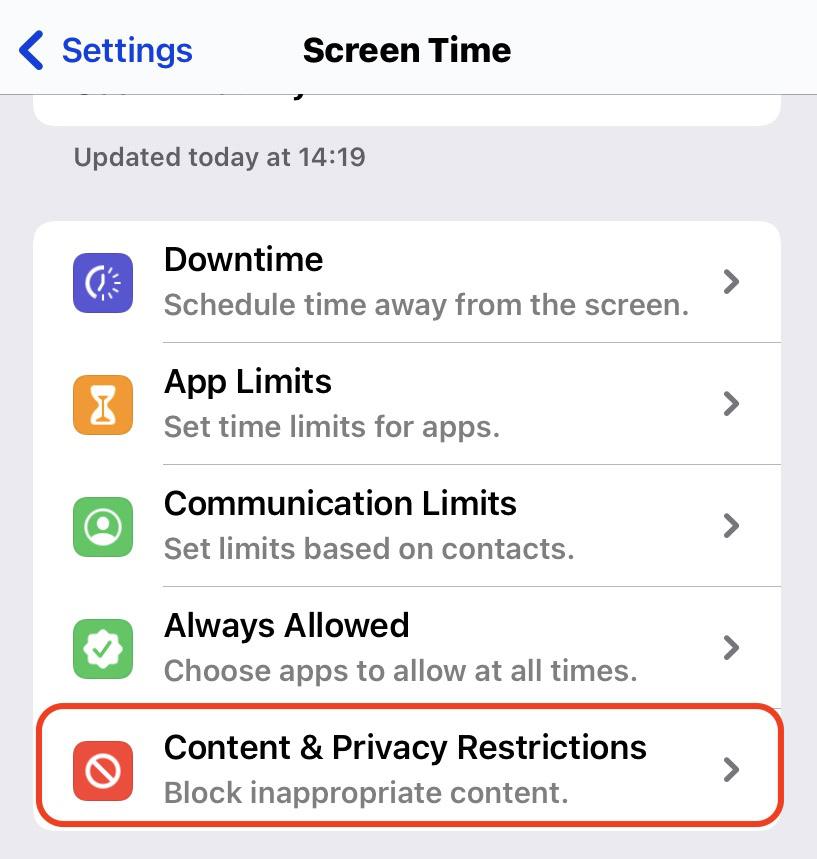
Apple’s Screen Time feature is the fastest built-in method for blocking websites on Safari. According to multiple iPhone setup guides, users can restrict selected websites by opening Screen Time, enabling Content & Privacy Restrictions, and then using Web Content filters.
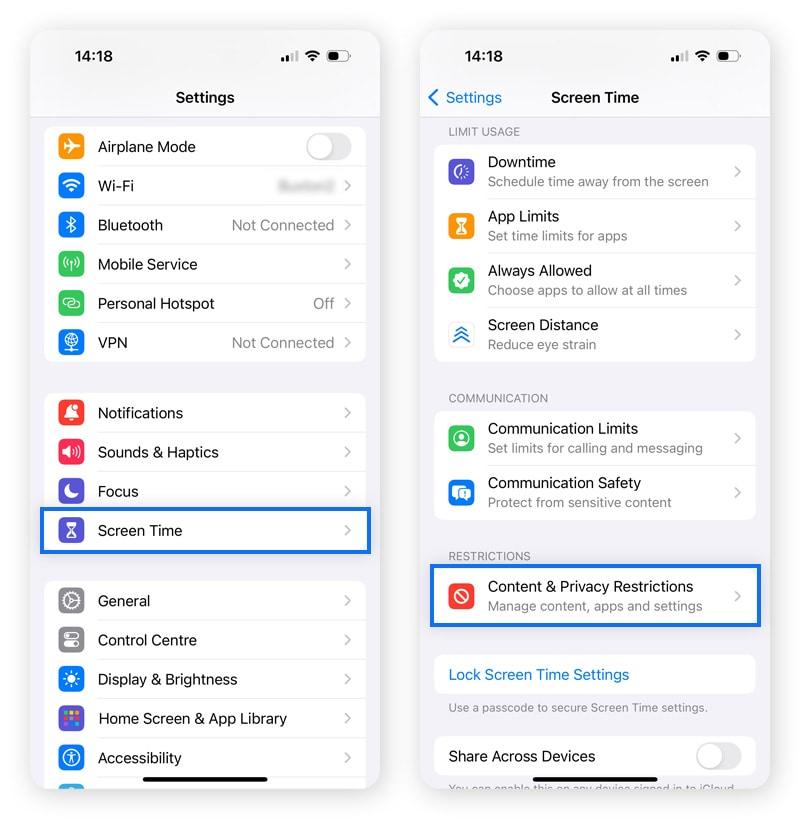
Step 1: Open Settings
Open the Settings app on your iPhone or iPad.
Step 2: Tap Screen Time
Turn on Screen Time if it is not already active.
Step 3: Create a Passcode
Set a Screen Time passcode so nobody else can remove the restrictions.
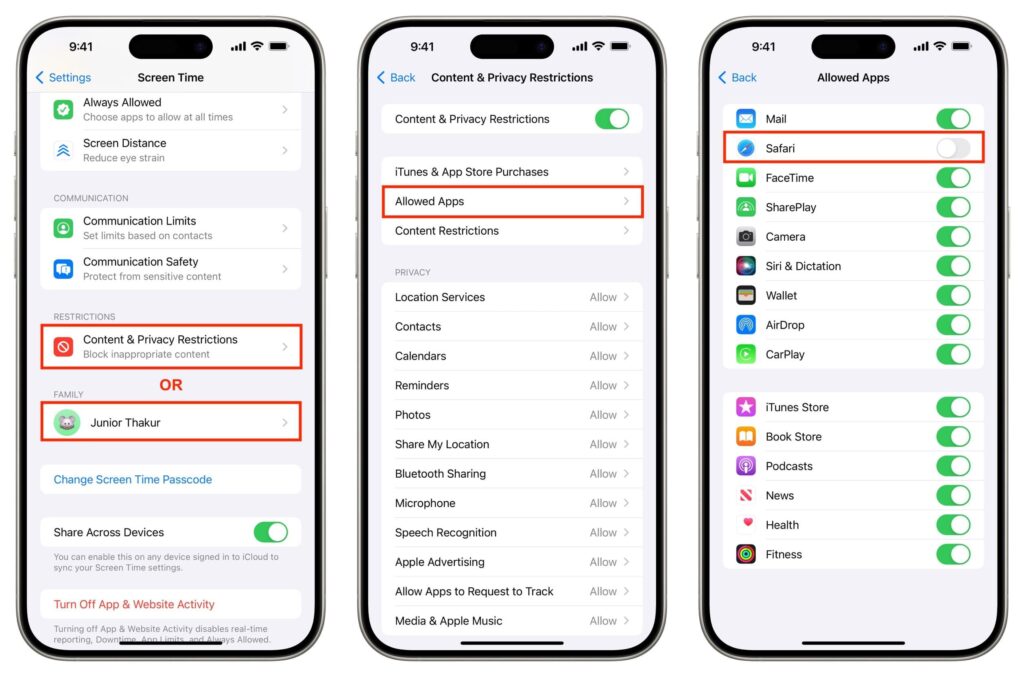
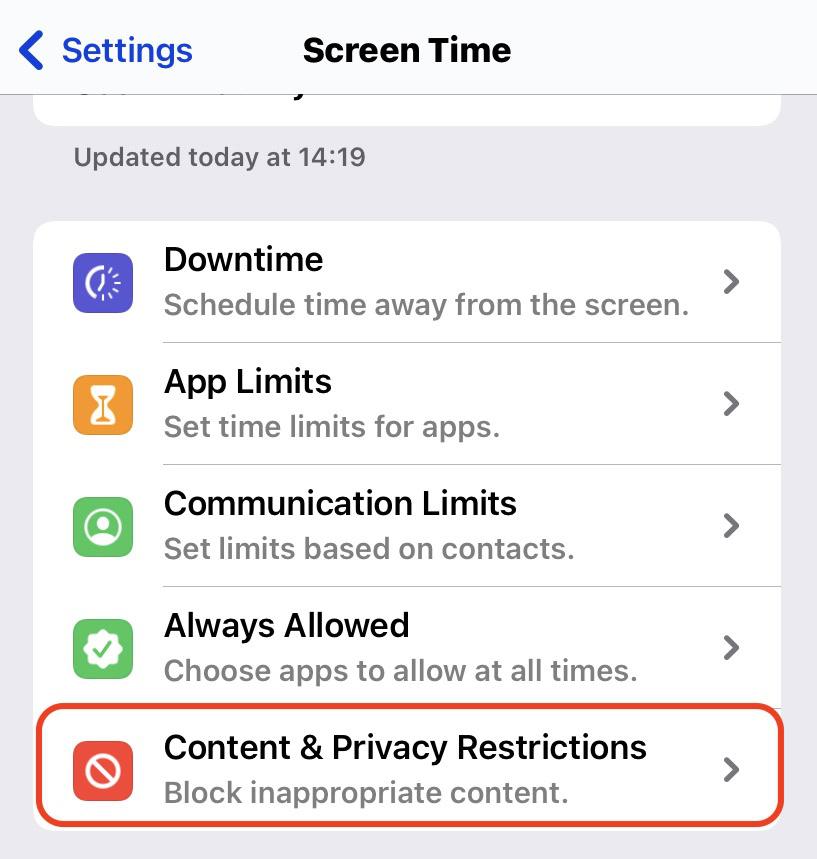
Step 4: Open Content & Privacy Restrictions
Enable this option.
Step 5: Tap Web Content
Choose “Limit Adult Websites.”
Step 6: Add Websites Under Never Allow
Type the website URLs that you want Safari to block.
Once these steps are completed, Safari will no longer load those websites.This is one of the easiest ways to create a manual website block on Apple mobile devices.
Block Websites on Safari for Mac
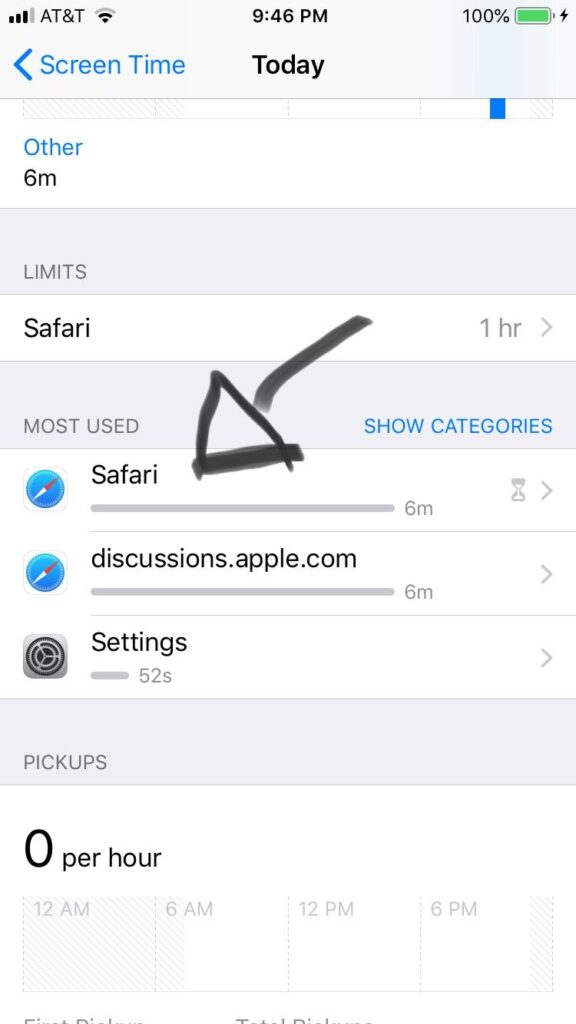
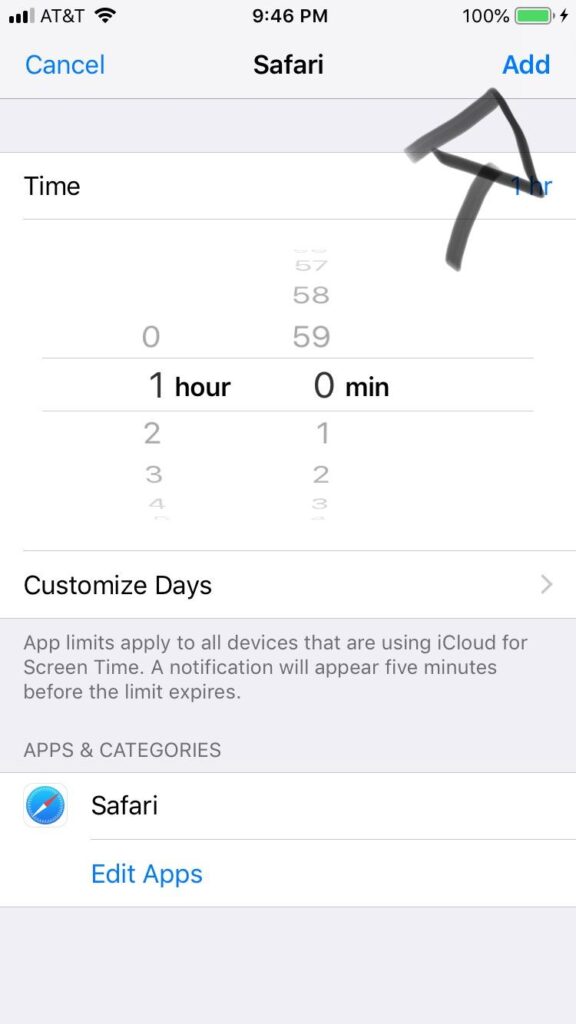
Mac users can also use Apple’s built-in controls, although Mac restrictions behave a little differently from iPhone settings. Recent Apple restriction walkthroughs note that Safari access can be limited through Screen Time app limits and web content controls.
Open System Settings
Click on the Apple logo and open System Settings.
Go to Screen Time
Enable Screen Time.
Open Content & Privacy
Turn on content restrictions.
Use Web Content Filters
Choose limited website access and manually add the domains you want blocked.
This method is highly useful for shared home computers or office Mac devices.
Use Allowed Websites Only for Full Control
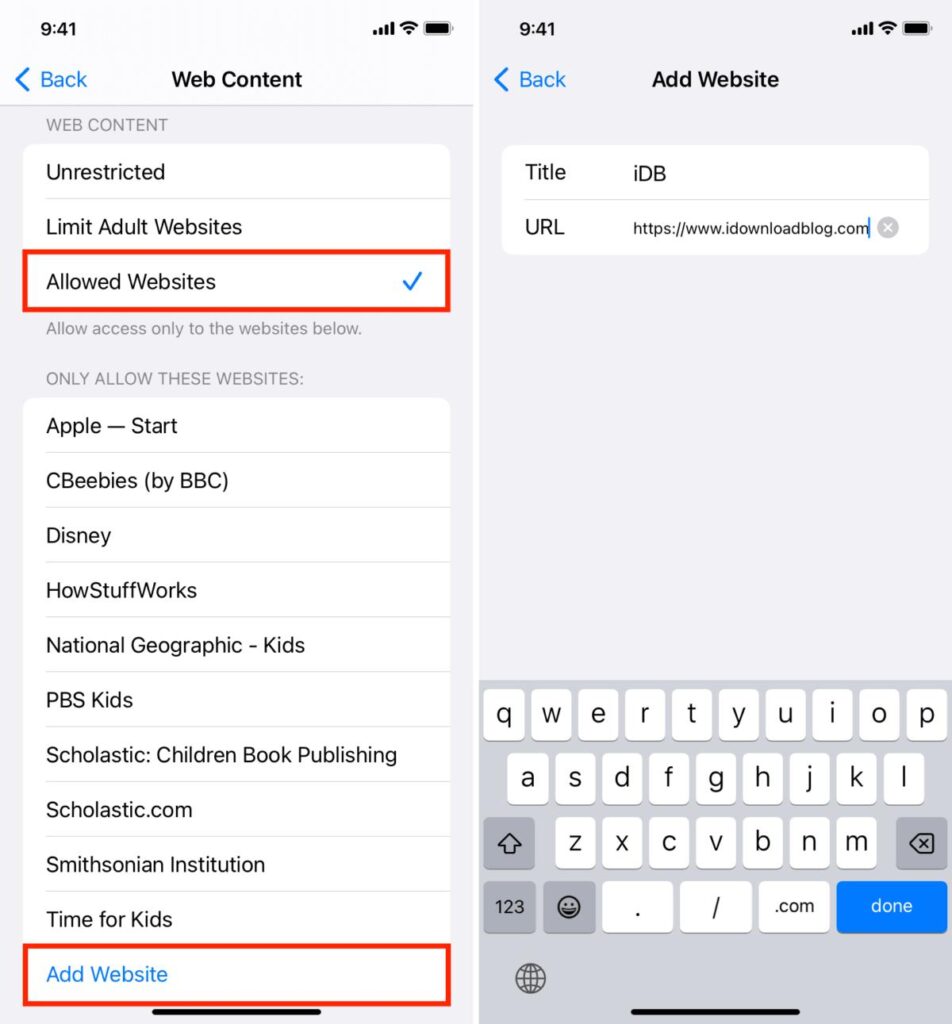
Sometimes users want stronger control than just blocking a few websites. Apple offers an “Allowed Websites Only” option for this purpose.
When this setting is enabled:
- Only approved websites can open
- Every other website is automatically blocked
- Children cannot freely browse unknown pages
This option works best for:
- Child learning devices
- School tablets
- Office training systems
- Family shared iPads
Instead of adding dozens of blocked websites, this website block method limits browsing to trusted pages only. Apple guides confirm that this whitelist system is ideal for controlled browsing.
Use Safari Extensions to Block Distracting Sites
Safari extensions can provide extra control if Apple settings feel too basic.
Many browser extensions allow users to:
- Block websites during work hours
- Set timers for social media
- Lock restricted websites behind passwords
- Redirect blocked pages to reminder screens
This is a good option for freelancers, students, and remote workers who need stronger productivity tools.
Try Third-Party Blocking Apps
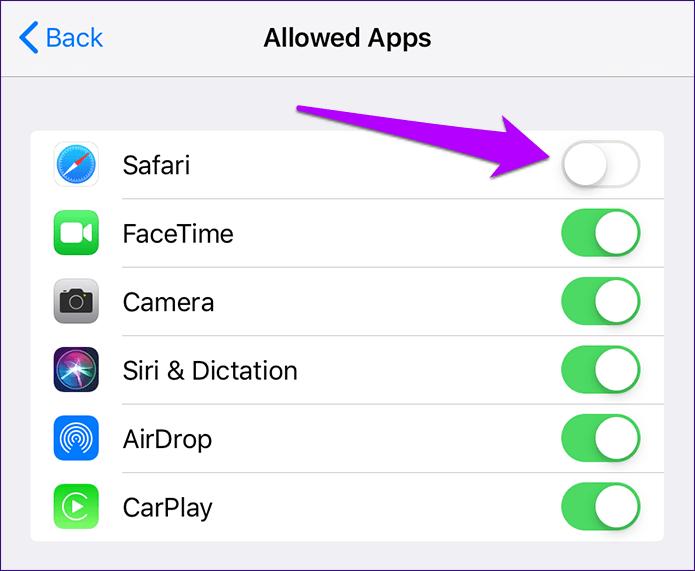
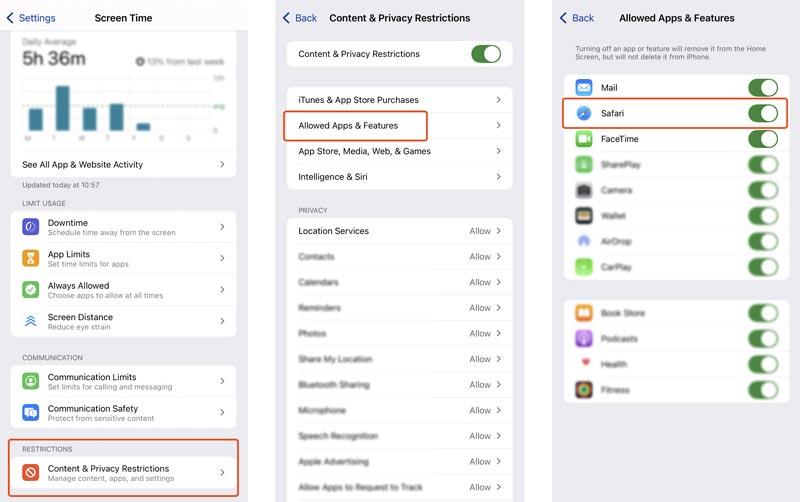
Sometimes users want website blocking across the entire device, not just Safari. Third-party apps can do that.
These apps usually offer:
- Full browser blocking
- App blocking
- Password protection
- Daily schedules
- Device usage reports
Because these apps work beyond Safari, they provide a more advanced website block for users who need hard-to-remove restrictions. Some recent device-management guides recommend supervised or external control when standard Screen Time feels easy to bypass.
Block Websites Through Router Settings
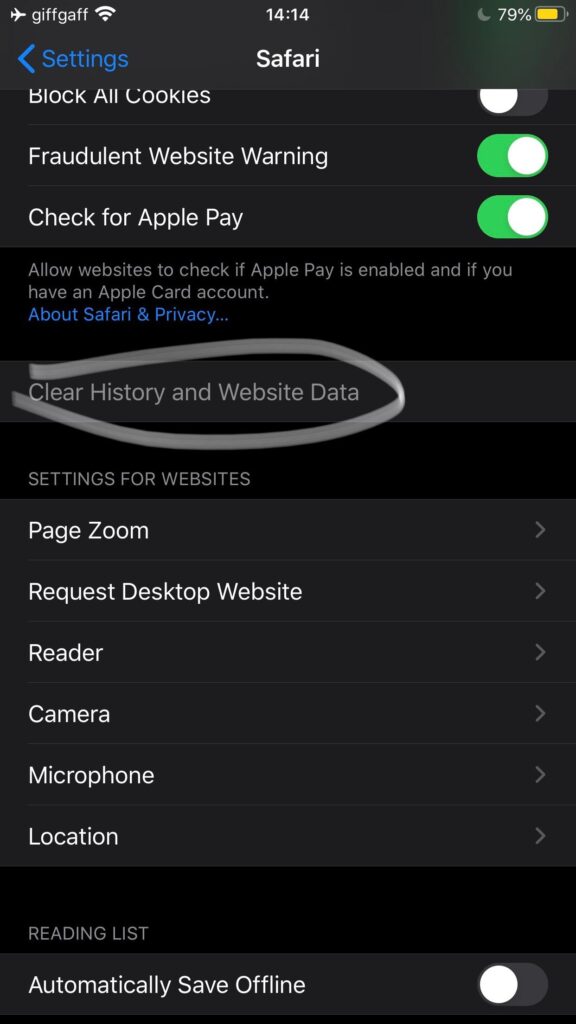
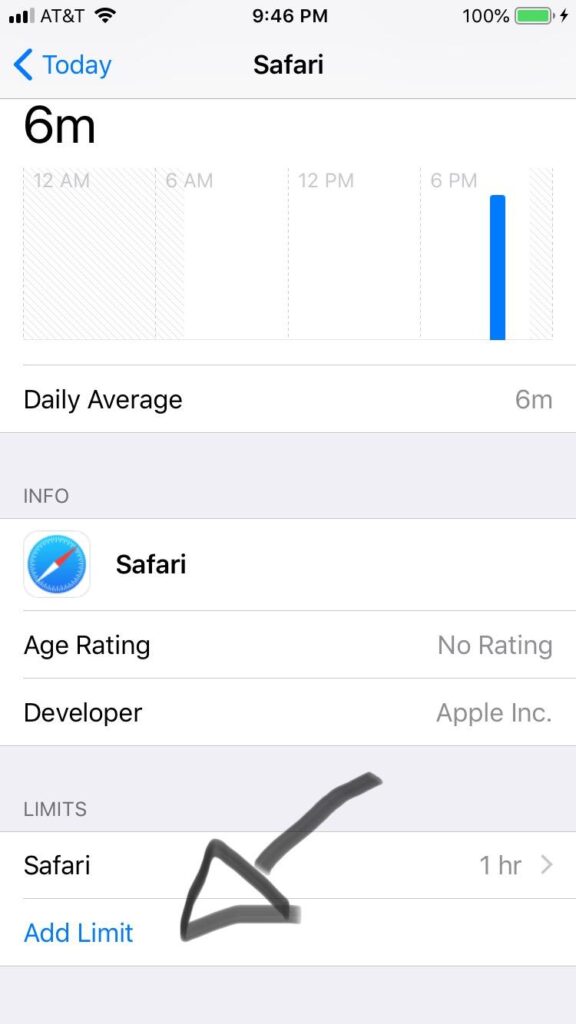
Router-level blocking controls internet access for every device connected to your Wi-Fi network.
That means:
- iPhone Safari gets blocked
- Mac Safari gets blocked
- Guest devices get blocked
- Tablets get blocked
Basic Setup
- Log in to your router admin panel
- Open parental controls
- Find URL filter settings
- Enter websites to block
- Save changes
This method is excellent for homes where parents want one internet rule for all users.
Use Family Sharing for Child Devices
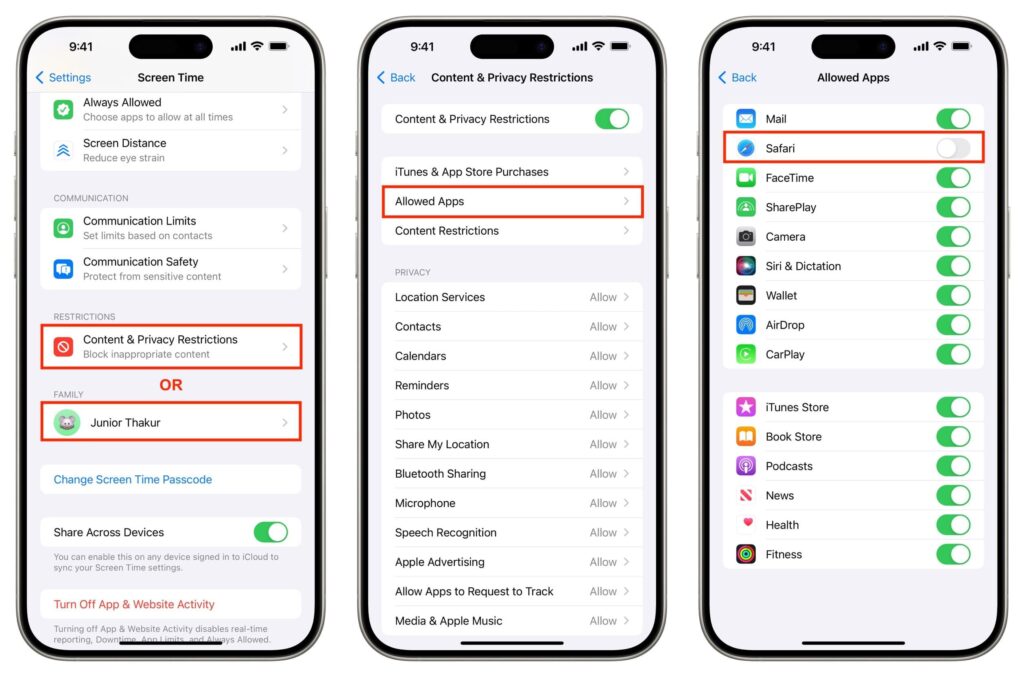
Apple Family Sharing allows parents to manage children’s devices remotely.
With this feature, parents can:
- Approve websites
- Restrict harmful content
- Monitor screen time
- Prevent children from changing settings
This is one of the safest choices for younger Apple users. Apple-based parental control instructions confirm that website restrictions can be managed through Family-linked Screen Time settings.
Create Focus Habits Along With Blocking
Website blocking works better when paired with healthy browsing habits.
Helpful tips include:
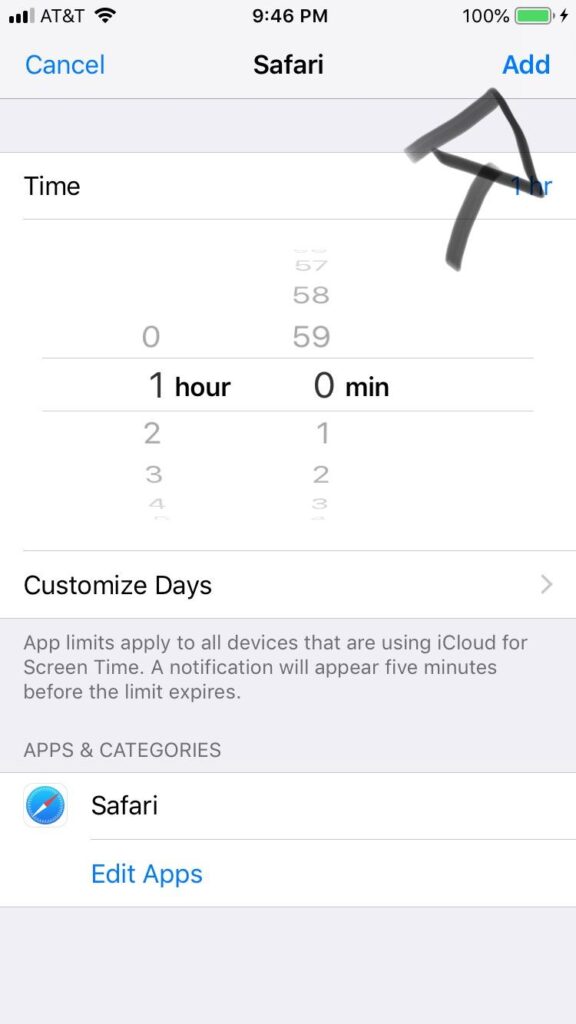
Use Time-Based Restrictions
Block websites only during study or office hours.
Keep a Strong Passcode
Make sure restrictions cannot be removed easily.
Limit Social Apps Too
Do not only block Safari pages—control distracting apps as well.
Track Weekly Progress
See whether your online time improves.This makes your website block setup much more effective in the long term.
Common Problems and Quick Fixes
Some users face issues after setting restrictions.
Common causes include:
- Wrong website URL entered
- No passcode enabled
- Restrictions not saved correctly
- User opening another browser
User discussions also show that Safari restriction glitches are often solved by checking Screen Time settings again or updating the device software.
Which Method Is Best?
The best option depends on your goal.
For Parents
Use Screen Time + Family Sharing.
For Productivity
Use Safari extensions or blocker apps.
For Whole House Internet Control
Use router settings.
For Strongest Restrictions
Use advanced third-party blocking software.
Different users need different levels of browsing control, so choose wisely.
Blocking websites on Safari is easier than many people think. Apple already includes powerful tools inside Screen Time and content restriction settings. Users who need more advanced control can also use Safari extensions, parental control apps, and Wi-Fi router filters.
Whether you want to improve productivity, protect children, or avoid online distractions, a smart website block plan can completely change how you use the internet. Once your settings are in place, Safari becomes a safer and more focused browser experience.
Frequently Asked Questions
How do I permanently block a website on Safari?
You can permanently block websites on Safari by using Screen Time content restrictions and adding websites under the Never Allow list.
Can I block websites on Safari without an app?
Yes, Apple provides built-in Screen Time and Web Content settings that allow manual website blocking without any third-party app.
Is there a way to block all websites except a few on Safari?
Yes, Safari offers an Allowed Websites Only option where users can approve only selected websites.
Can parents block websites on a child’s iPhone remotely?
Yes, using Apple Family Sharing and parental Screen Time settings, parents can manage website restrictions remotely.


